Over a year ago, a friend of mine who runs a well-trafficked news portal asked me: “Petko, is there a way to see how much traffic I get from Google Discover?”
Honestly, I had no idea. But as soon as I heard the question, I switched into my “challenge accepted” mode and started digging.
I first remembered how we used to track traffic from Android device search apps in Universal Analytics. From there, it all started and soon, my friend could finally see the “hidden” Discover traffic in his GA4.
What is Google Discover?
Google Discover is a personalized content feed that shows up for Android users (and beyond) without them even having to search. In short, it’s Google saying: “You don’t have to search, we know what you like.”
And it works! Some publishers get over 30% of their traffic from Discover.
Unfortunately, in GA4, such visits often end up… well, in “Unassigned” or, at best, under “Direct”. 😐
How GA4 Sees Discover Traffic
Most Discover traffic comes from the mobile app with a referrer like this:
com.google.android.googlequicksearchboxGA4 doesn’t know how to classify this properly since it’s not a standard HTTP referrer. As a result, the traffic gets dumped into “Unassigned” or, sometimes, “Referral.”
We have the data, but not the insight. Time to fix that!
Steps to Properly Track Discover Traffic
Step 1: Create a Custom Dimension for page_referrer

Creating the “page_referrer” dimension to track Google Discover traffic more accurately.
The “page_referrer” parameter exists in GA4 event data but isn’t visible in standard reports or Explorations (although I’m not quite sure about the Explorations, because “Page Referrer” is visible in API). To use it, you first need to create a Custom Dimension.
Here’s how:
- Go to Admin → Custom definitions → Create custom dimension
- Name:
Page Referrer - Scope: Event
- Event parameter:
page_referrer

Setting up the “page_referrer” parameter for better Discover traffic visibility.
Now you can filter for values like com.google.android.googlequicksearchbox as in the following example:
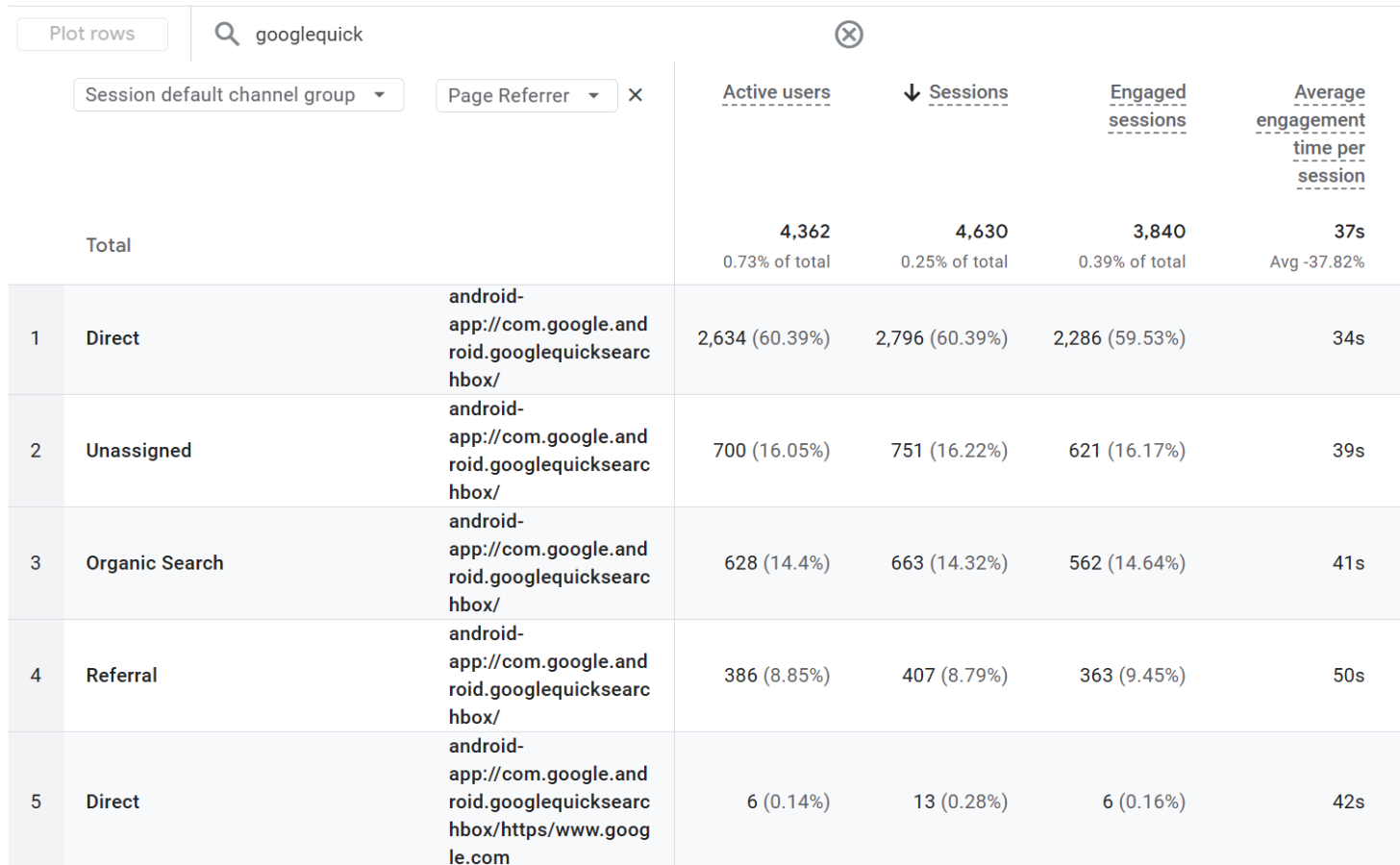
To make it even cleaner, we’ll tweak it a bit further using Modify Event.
Step 2: Rename Discover Referrer Traffic via Modify Event
In order to show the values of “Page Referrer” dimension, we can shorten or change them via Google Analyticsa 4 interface.

We need add a condition that detects the traffic from Google Discover and sets up an new values for Medium and Source.
Let’s go to:
- Admin → Data Display → Events → Modify Event (or Data Collection → Data Streams → Modify Event)
Create a new rule, name it something like “Referral is Google Discover”:
- Modification name:
Referral is Google Discover - Event name:
page_view - Condition:
page_referrercontainsgooglequicksearchbox
Add these parameter modifications:
medium→organicsource→discover
Or if you prefer, you can map it to googlequicksearchbox, like I did:
page_referrer→Google Discoversource→googlequicksearchbox

Now your reports will soon start displaying “Google Discover” or “discover” as a recognizable source.

Step 3: Adjust Channel Grouping in GA4
To make Discover traffic appear properly within Default Channel Groupings, we need to teach GA4 where it belongs.
Note: if you read the previous blog “AI visits to your website? Of course Google Analytics 4 can track those!” and you have already created a new channel definition, you can just edit that existing channel and add another one to it.
Google Analytics 4 has its default channel grouping or “Default Channel Grouping”, which (for now) cannot be changed, but it is possible to create a new channel grouping from it, and set it as default. How will you do that?
You have two options:
- Treat Discover traffic as part of “Organic Search”
- Create a separate channel called “Discover”
(For publishers, I’d recommend keeping it separate!)
Here’s how to do it:
- Go to Admin → Data Display → Channel Groups
- Find Default Channel Group → click the three dots → Copy to create new

Name your new Channel Grouping something like Default Channel Group and Discover. Put some description here as well.

Then:
- Click “Add new channel”
- Name:
Discover - Rules:
- Source exactly matches
discover - Medium exactly matches
organic
- Source exactly matches

(In the example in the image 9, I used the values Source exactly matches googlequicksearchbox. If you mapped it differently in Modify Event, adjust your rules accordingly.
Reorder your channels to place “Discover” above “Direct” or “Organic Search” to prioritize it properly.

Alternatively, if you prefer Discover to stay grouped under “Organic Search,” here’s what you can do.
Go to channel “Organic Search” and simply edit that channel’s rule:
- Add:
OR Source exactly matches (=) discover(orgooglequicksearchboxin my example)
Setting the new channel definition as the default
And that’s it! You now have the original default channel definition and your new channel definition, which you named e.g. “Default Channel grouping and Discover”, like in the picture below:

After you have created a new channel definition (Channel Grouping), you can set that new channel definition as the default in Google Analytics, or you don’t have to. If you set it as default, in all reports where we have “(Session or First User) Default Channel Grouping” as a dimension, we will now have channel grouping with our new name. In all these reports, we will still be able to select the “old” channel grouping.
You can even make your new grouping the default for reports that use (Session or First User) Default Channel Grouping.

Seeing Discover Traffic in Reports
After setting everything up according to the instructions, after a few days in the standard Google Analytics 4 reports, we can clearly see how much traffic comes from Discover in the new channel definition.

In Explorations, you can add the page_referrer dimension and directly analyze traffic from com.google.android.googlequicksearchbox under your brand-new “Discover” channel.
Final Thoughts
Google Discover can be a major source of traffic, especially for content-rich websites and publishers. But even smaller websites can benefit from tracking it properly.
If your GA4 says “Unassigned,” you can now proudly tell it: “Nope, I KNOW where they came from!”
And yes, all this can be tracked in GA4. You just need to roll up your sleeves and push the platform a little.
If you have any questions or if you want to implement this setup on your website, you know where to find me. Or even better: see you at one of my next workshops!
Update:
Someone pointed to me that this isn’t the original article (as many articles aren’t) or approach, which I fully agree. The idea came while talking with Arnout Hellemans a few years back, from a concept he described in his article Recover (direct / none) traffic in Google Analytics? Here’s the guide!, published in 2021. covering the previous version of Google Analytics – Universal Analytics.
But then a good friend of mine asked me back in early 2025. how could we track Goole Discover traffic on his website and that idea of Arnout’s came back to my head, so I’ve decided to “translate” is into a never version of Google Analytics – GA4.
While trying to find some visuals for my article, after I implemented the method at my friend’s website, I found the image needed at a blog post written by Harleen Sanhdu, titled How to Optimize & Track Google Discover in Google Analytics that shares the similar approach I described in this blog post. Her post is great too, you should read it and follow her as well 🙂